
Can You Record WhatsApp Calls on iPhone?
How to Record WhatsApp Calls on iPhone? It is a common perception that iPhone users can’t record WhatsApp voice and video calls because Apple has imposed some restrictions on iPhone users regarding call recording on WhatsApp and other similar apps. Though Apple has not allowed call recording on WhatsApp and other similar apps, there is an option using which you can record WhatsApp voice and video calls on your iPhone.
Requirements for WhatsApp Call Recording on iPhone
To use this method, you need an iPhone running iOS with access to the Control Center. The Screen Recording feature must be enabled along with Microphone access. No third-party application or jailbreaking is required for this method.
Step-by-Step Setup on iPhone
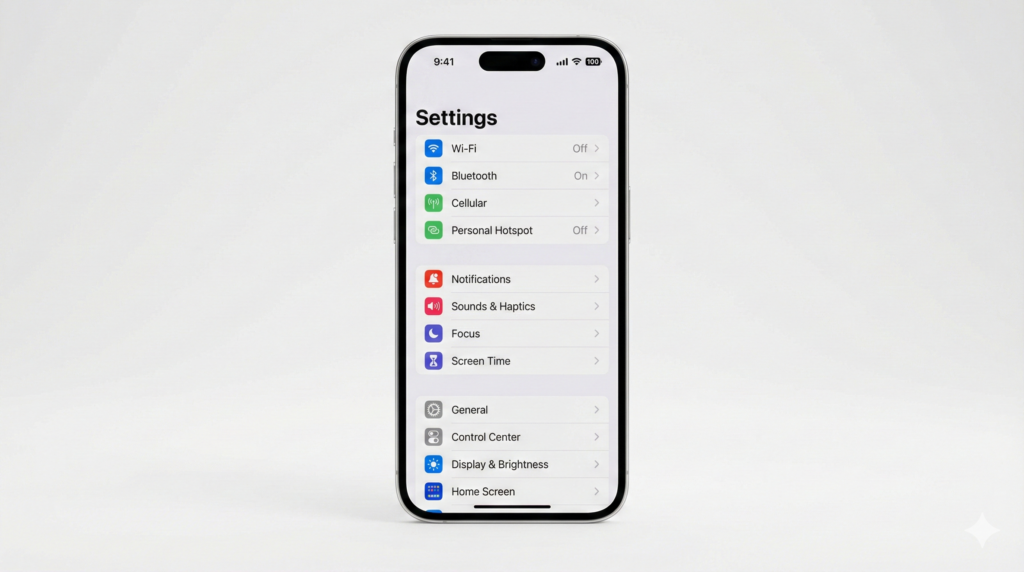
Step 1: Open iPhone Settings
Open Settings on your iPhone. This is where you will configure the Control Center to enable the required recording option.
Step 2: Open Control Center
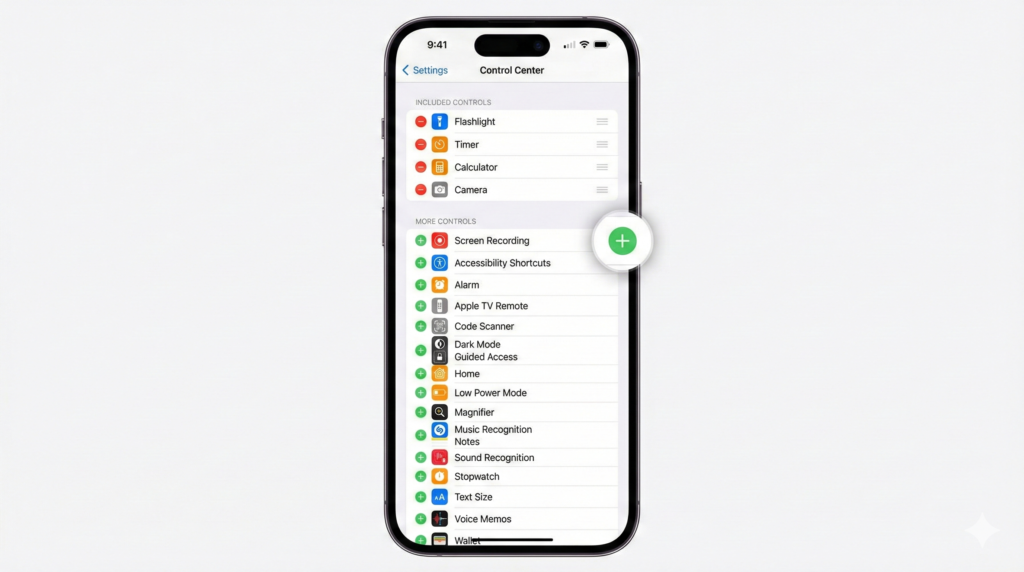
Inside Settings, tap on Control Center. This section allows you to customize which features appear when you swipe down or up on your iPhone screen.
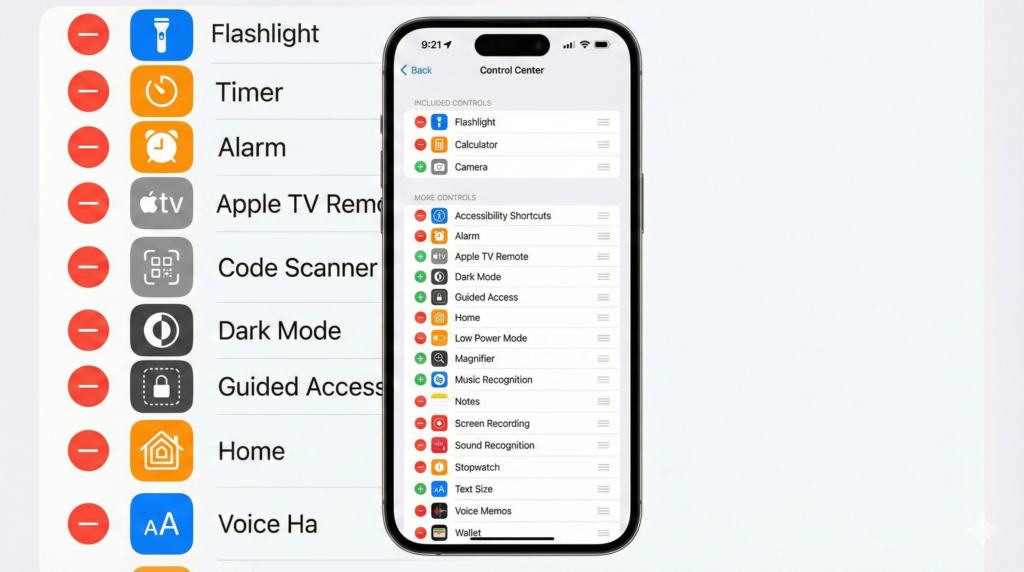
Step 3: Add Screen Recording
Inside Control Center, scroll down and find Screen Recording. Tap the plus (+) icon next to it to add Screen Recording to your Control Center.
How to Record a WhatsApp Call on iPhone
Step 4: Start or Receive a WhatsApp Audio Call
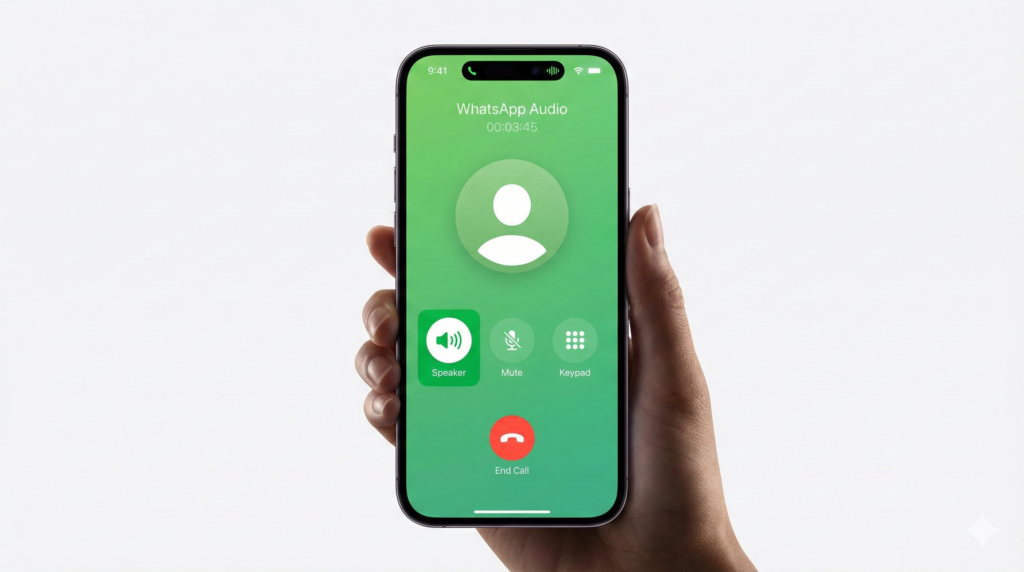
Open WhatsApp and either make an audio call or answer an incoming WhatsApp call. It is recommended to use speaker mode for better audio capture so that both sides of the conversation are recorded clearly.
Step 5: Open Control Center
While the call is active, open the Control Center. On Face ID iPhones, swipe down from the top-right corner. On Home button iPhones, swipe up from the bottom of the screen.

Step 6: Long Press Screen Recording
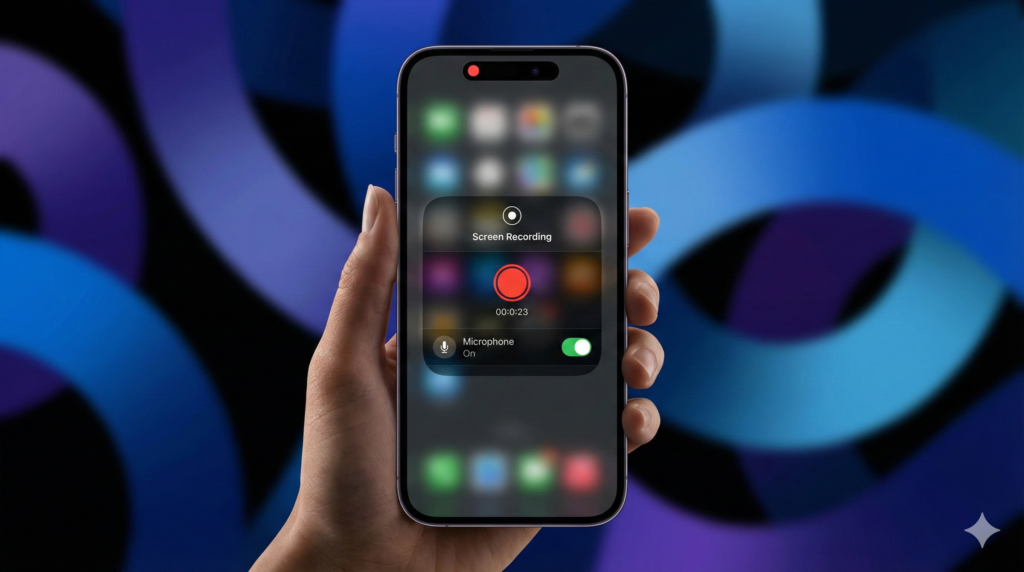
Long press the Screen Recording button in the Control Center. A menu will appear showing additional recording options.
Step 7: Turn Microphone ON
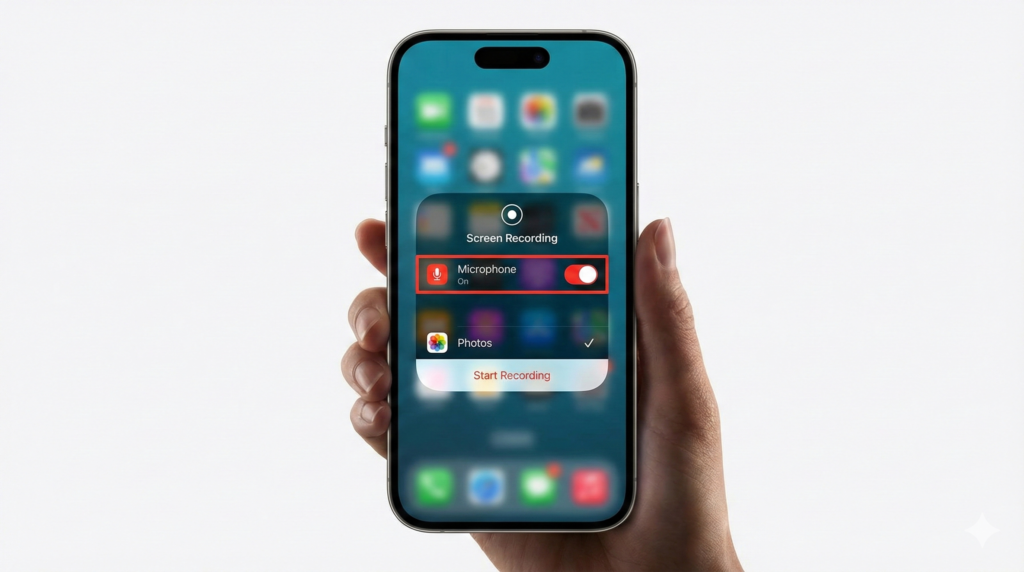
Enable Microphone Audio from the menu. This step is very important because if the microphone is not enabled, only the screen video will be recorded without any sound.
Step 8: Tap Start Recording
Tap Start Recording to begin the recording. The WhatsApp call will now be recorded while the call continues.
Where Is the Recording Saved?
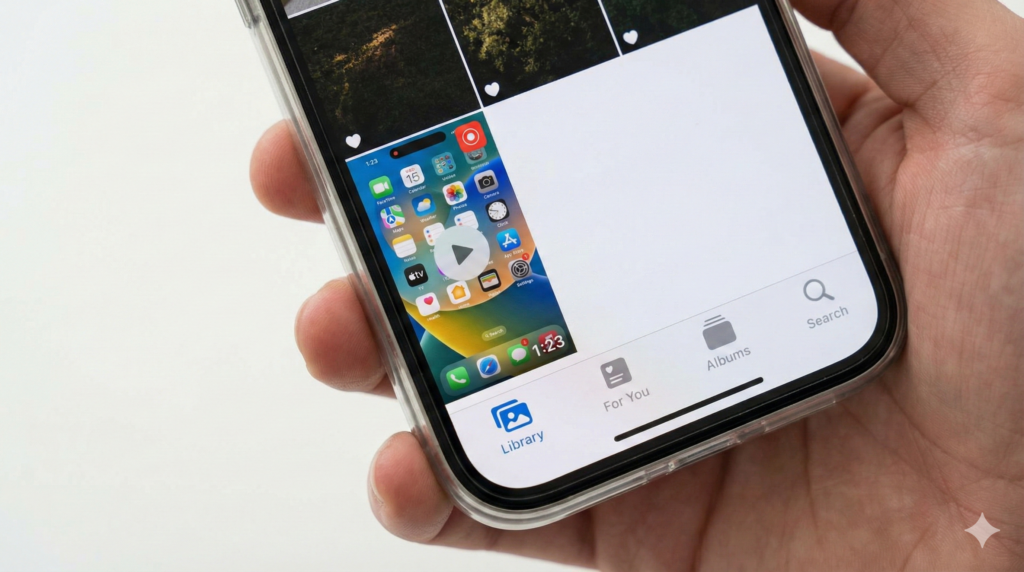
After ending the recording, the file is saved automatically in the Photos app on your iPhone. You can play the recording, trim unnecessary parts, or share it as needed.
Important Tips for Clear Audio
Always put Speaker mode on during the call. Make sure the phone volume is set to high. Recording should be done in a quiet place. Following these tips will ensure that both your voice and the other person’s voice are recorded clearly.
Limitations of This Method
This method records audio through the speakerphone, so the quality depends on the speaker volume and surrounding environment. Video recording is also possible along with audio, but the audio capture relies entirely on the speaker output.
Is WhatsApp Call Recording Legal on iPhone?
It is legal to record calls for personal use. However, it is illegal to record anyone without their consent. The legality of call recording varies depending on the country.
Conclusion
Although iOS does not support direct WhatsApp call recording, the above-mentioned method is the most reliable solution to recording calls on an iPhone. This is because it does not require any third-party app or jailbreaking. If you thought that WhatsApp call recording is impossible on an iPhone, then you are wrong.